Laptop Audio Issues

Fix 1: Check the hardware problemsIf there is no sound from your Dell laptop, you should, first of all, check the hardware problem. Here’s the troubleshooting steps:
Check the speaker on your computer
Ensure your speaker volume is not muted. Sometimes the volume is muted and you’ll absolutely hear no sound. Just check the Volume icon on your desktop, and drag the slider to maximum and see if you can hear any sound.

In addition, simple take a look at the speaker on your laptop, and see whether there is anything covering upon the speaker.
You should also check the headphone jack if you’ve plugged into a headphone with your laptop. Look inside the jack and see if there is any damage or dust or lint that may stop your headphone from working properly.
If so, clean the jacks with a cotton swab or brush.
- Check the microphone or headphone
If you’re connecting a mic or headphone with your laptop, you should also make sure the device is working properly.
Try disconnecting and reconnecting and see if there is any sound. Or you can try another mic or headphone and see if where the problem lies in.
Fix 2: Check the audio settings
If the sound issue still persists after troubleshooting the hardware problems, don’t worry. You can modify the audio settings. Here’s what you can do:
-
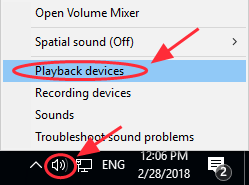
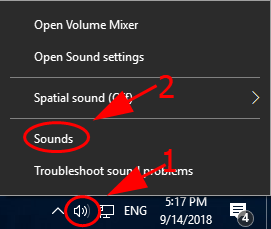
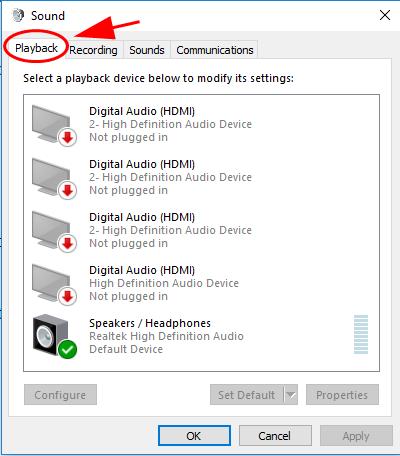
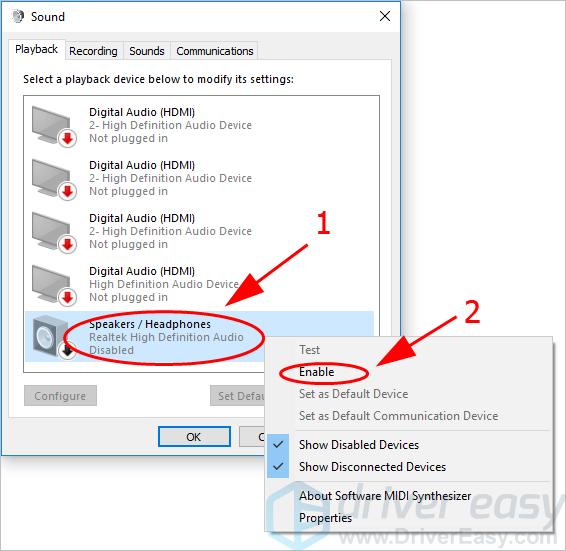
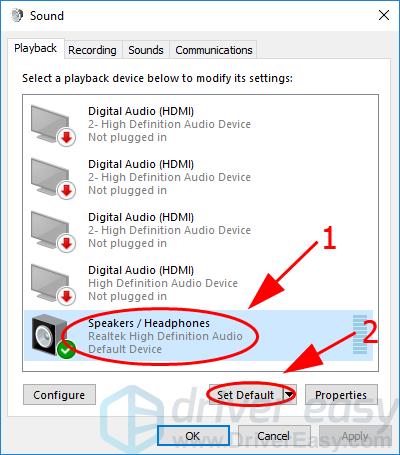
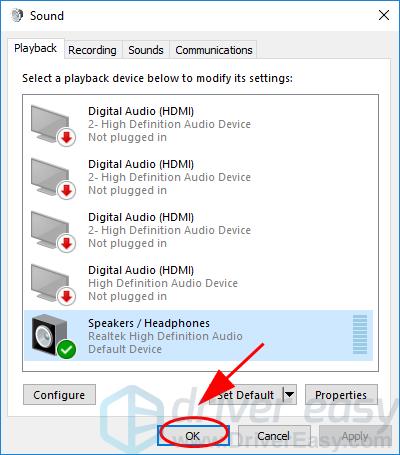
On your desktop, right click the Volume icon at the bottom right corner, and click Playback devices.
Try to play any sound to see if there is sound coming from your laptop.